How to Configure and Process Payroll in Sage 50 Peachtree: A Professional Guide
Learn how to configure payroll formulas and process automated salary payments in Sage 50 Peachtree. A professional guide for IFRS compliance and audit preparation.
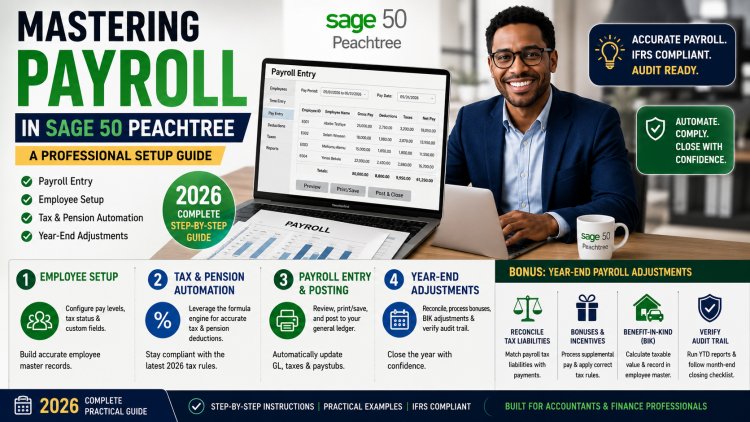
Mastering Payroll in Sage 50 Peachtree: A Professional Setup Guide
Accurate payroll management is the backbone of any successful business. In the modern regulatory environment, shifting toward IFRS (International Financial Reporting Standards) means that manual salary spreadsheets are no longer sufficient. Using the Sage 50 (Peachtree) Payroll module allows you to automate complex tax calculations, ensuring your business remains compliant with the latest tax proclamations.
Pro-Tip: Accurate payroll is a vital component of a smooth
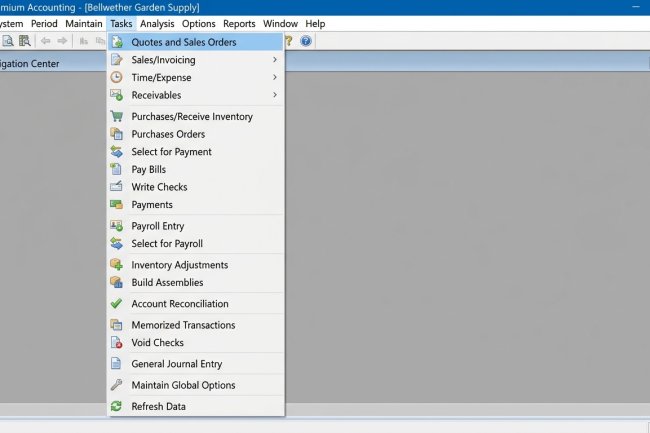
Month-End Closing Procedure . Before processing salaries, ensure your ledger is prepared by mastering the Sage 50 Tasks Menu .
1. Navigating the Payroll Entry Screen
In Sage 50, all monthly operational tasks are centralized for efficiency. To begin your salary run, navigate to Tasks > Payroll Entry. This interface acts as the "calculation engine" for your business, processing everything from gross wages to net pay.
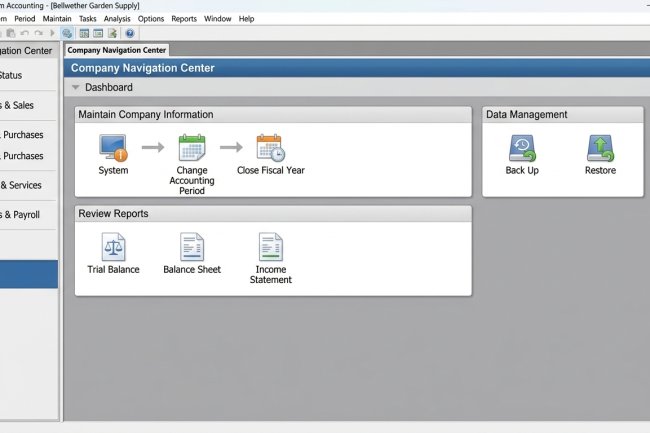
[Insert Image: Sage 50 Peachtree Payroll Entry Interface for Salary Processing 2026] (Alt-Text: Sage 50 Peachtree Payroll Entry Interface for Salary Processing 2026)
2. Configuring Employee Master Records
Before you can process a single paycheck, you must define your staff parameters in the Maintain > Employees/Sales Reps menu.
-
Pay Levels: Assign hourly rates or monthly salaries.
-
Tax Status: Ensure each employee is mapped to the correct tax table based on their residency and filing status.
-
Custom Fields: Use these to track specific department codes, which is essential for accurate Departmental Accounting and IFRS reporting.
3. Automating Tax & Pension Deductions
The primary benefit of using Sage 50 for payroll is the Formula Engine.
-
Income Tax: The software automatically calculates withholding tax based on the latest tax brackets (e.g., the 2026 Ethiopian Income Tax amendments).
-
Pension/Social Security: By setting up global formulas, the system deducts the correct percentage from both the employee and the employer, automatically updating your Payroll Tax Liability accounts.
4. Finalizing the Payroll Run
Once you have reviewed the hours and deductions in the Payroll Entry screen:
-
Print/Save: This action posts the transaction to the General Ledger.
-
Journal Update: Sage 50 automatically debits your
Payroll Expenseand creditsCashandTax Liabilities. -
Paystubs: Generate professional paystubs that provide transparency to your employees and serve as legal documentation during a financial audit.
Bonus Section: Managing Year-End Payroll Adjustments
Closing the payroll year in Sage 50 (Peachtree) requires more than just processing the final check. To ensure your business is audit-ready and compliant with IFRS (International Financial Reporting Standards), you must perform specific year-end adjustments.
1. Reconciling Payroll Tax Liabilities
Before the final close, compare your Payroll Register against your General Ledger.
-
The Goal: Ensure that the total "Withholding Tax" and "Pension" deducted from employees throughout the year matches the total payments made to the tax authorities.
-
Adjustment: Use a General Journal Entry in the
Sage 50 Tasks Menu
2. Processing Annual Bonuses and Incentives
If your company provides year-end bonuses or 13th-month salaries:
-
Use the Payroll Entry screen to process these as "Supplemental Pay."
-
Tax Tip: Remember that bonuses are often taxed at different rates or added to the month's regular income, depending on the latest 2026 Tax Proclamation amendments. Sage 50 formulas should be adjusted to reflect these "Aggregated" tax calculations.
3. Benefit-in-Kind (BIK) Adjustments
For high-level employees receiving non-cash benefits (like company cars or housing):
-
You must calculate the "Taxable Value" of these benefits.
-
Enter these values into the Employee Master Record under "Company Fields" so they are reflected in the final annual tax summary (e.g., the Model 30 or annual tax return).
4. Verifying the Audit Trail
Before moving to the new fiscal year:
-
Run the Year-to-Date (YTD) Earnings Report.
-
Cross-check this with your Income Statement payroll expense.
-
Once verified, follow the
Sage 50 Month-End Closing Checklist